If you run a business website, then you know you are supposed to make it accessible. The hard part is finding out whether it already is, before you pay someone to tell you.
The good news is that the most common problems are easy to find yourself, with free tools and one afternoon. Most checklists online do not help with that. They give you 80 or more rules copied from WCAG, but they never tell you how to test them.
I audit 25 to 30 local business websites every month, most of them in Los Angeles, and I write the fix for every finding myself. So I know how many hours a real audit takes, and what a report has to contain to be useful.
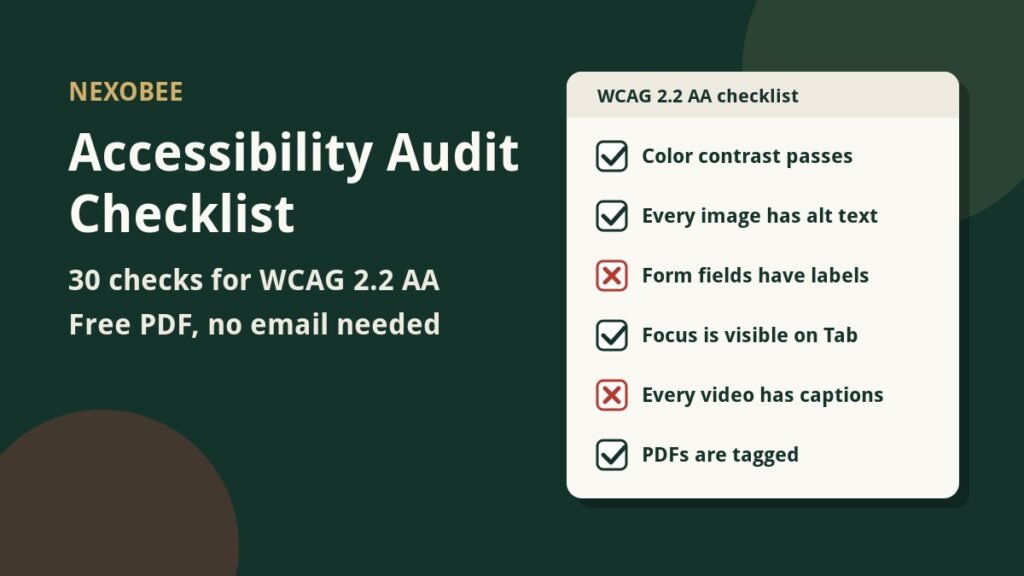
In this guide, I’ll give you a 30 point accessibility audit checklist for WCAG 2.2 AA. Every check names a free tool and tells you how to test it. You can tick the boxes on this page, or download the checklist as a free PDF.
Quick Answer: An accessibility audit checklist is a list of tests that shows whether people with disabilities can use your website. This one has 30 tests. The first six catch the most common errors, and the free WAVE extension finds them in one click. The other 24 need your keyboard and a screen reader.
What Is an Accessibility Audit Checklist?
An accessibility audit checklist is a list of the things a website must do so that people with disabilities can use it. Each line stands for a rule in WCAG, the standard that US courts and the Department of Justice point to. You go through the list, test each item, and mark it Pass or Fail.
A checklist is not the same as a full audit. A full audit tests every page in scope and writes up every finding with a fix. For a 15 page site, that takes 24 to 30 hours. I explain what that looks like in my guide on what an accessibility audit is. A checklist is the fast first pass you can do yourself in an afternoon.
Most checklists leave out the test. WCAG 2.2 has 86 success criteria, and reading all of them does not tell you how to check a contact form. So every check below says what to look at, which tool to use, and what a pass looks like.
What You Need Before You Start
You need four free tools and about two hours. Install the tools first, because the checks below refer to them by name.
- The WAVE browser extension. WAVE is free from WebAIM and works in Chrome, Firefox and Edge. It marks contrast errors, missing alt text, empty links and missing form labels right on the page.
- The WebAIM Contrast Checker. This free page takes a text color and a background color and tells you whether they pass.
- A screen reader. NVDA is free on Windows. VoiceOver is built into every Mac and iPhone. You only need the basics: start it, read a page, and move through a form.
- Your keyboard. About a third of the checks are done by putting the mouse away and pressing Tab.
Then pick the pages to test. Start with your homepage, your contact page, and every page where a customer books, orders or pays. Those are the pages your visitors use most.
Tip: Test one page at a time and write down every Fail before you fix anything. If you fix as you go, you lose track of what you have tested. The PDF has a notes field under each check for this.
How to Use This Checklist
Each check has three parts: what to look for, how to test it, and the WCAG rule it covers. Read the check, run the test, and tick one box: Pass, Fail or Not sure.
If you cannot tell whether a video has correct captions, mark it Not sure and move on. A tester can settle it later.
The checks are in order of how often they fail. Section A covers the six errors that make up 96 percent of all the errors WebAIM found. Sections B to F cover the problems a scanner cannot see.
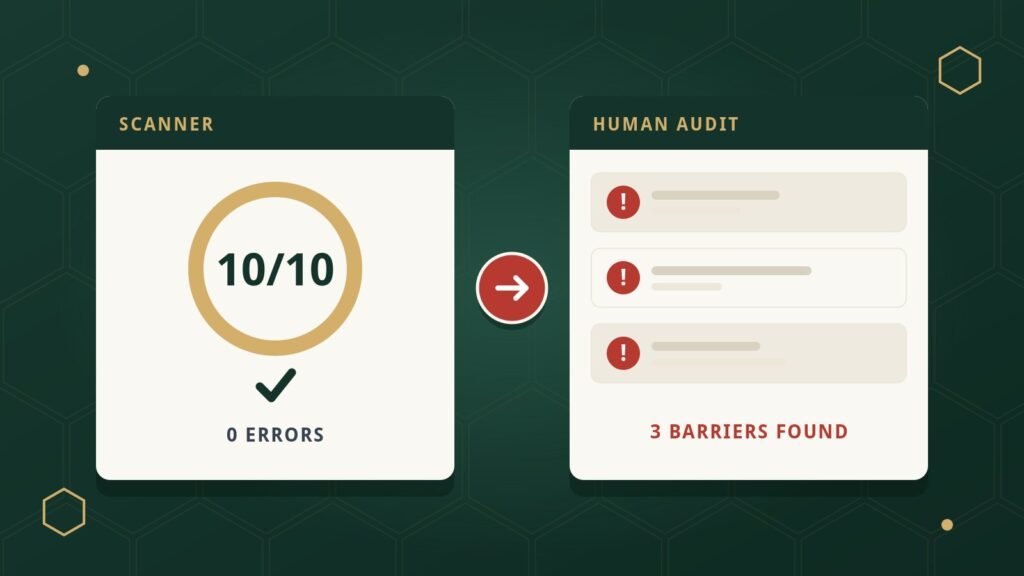
Automated tools find fewer than half of all barriers. The UK government tested ten tools on one page with 143 known problems, and the best tool found 41 percent. Deque measured 57 percent across 13,000 pages. So a scanner that reports zero errors has only done part of the work. Sections C to F cover the rest.
A. The six problems that cause most errors on the web
These six problems made up 96 percent of the errors in the WebAIM Million study. WAVE finds most of them in one click, so start here.
B. Heading structure and navigation
Screen reader users move through a page by its headings and links, not by scrolling. These three checks make sure the page has a map.
C. Keyboard access and focus (a scanner cannot test these)
A scanner cannot press Tab. These seven checks are done with your keyboard, and they catch the problems that lock out people who cannot use a mouse.
D. Forms
A form that does not work turns a customer away. Three of these checks are new in WCAG 2.2.
E. Video, audio and motion
Video, audio and moving content need text alternatives and a way to stop them. These four checks cover both.
F. Screen reader testing and hidden places
The last four checks need a screen reader, a PDF checker and a Google search. They find the problems that hide in files and forgotten pages.
What to Do With Your Fails
Now that you have a list of Fails, fix them in order, worst first. Here is a sensible order.
- Anything that blocks a task. A form that cannot be submitted, a menu that traps the keyboard, or a checkout that needs a mouse. Fix these first, because they stop a visitor from becoming a customer.
- The section A errors. Contrast, alt text, form labels, empty links and buttons, and the language setting. Most of these take minutes each, and they are the errors a scanner reports first.
- Headings, focus and captions. These take longer, but they decide whether the site makes sense to a screen reader user.
- PDFs and forgotten pages. Rebuild the PDFs that matter as web pages, and delete the ones that do not.
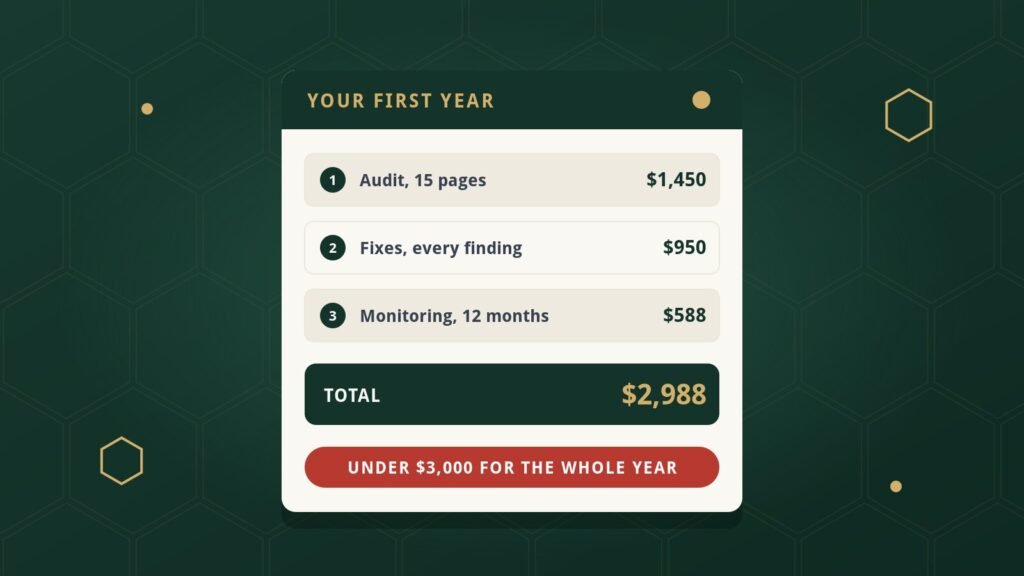
If your list is long, or you marked many checks Not sure, that is the point to bring in a tester. A NexoBee Snapshot covers your three most important pages for $249 and gives you a two page summary in two business days. If you then buy a full audit within 30 days, the $249 is credited toward it. My guide on what an accessibility audit costs shows what the bigger jobs cost at four US firms.
And once the site passes, keep it that way. Every new page, new plugin and new PDF can bring a Fail back. Run this checklist on any page you change, and run the whole thing every three months. Our monitoring plans do this for you from $49 a month.
FAQs About Accessibility Audit Checklists
Is this checklist the same as a full accessibility audit?
No. This checklist is a first pass you can do yourself on a few pages in an afternoon. A full audit tests every page in scope with a keyboard and a screen reader, and writes up every finding with a fix. For a 15 page site, that takes 24 to 30 hours. Use the checklist to find out whether you have a problem, and an audit to find all of them.
How often should I run an accessibility audit checklist?
Run it on any page you change, as soon as you change it. Then run the full checklist on your key pages every three months. New plugins, new themes and new PDFs are the usual way a fixed site breaks again. A monitoring plan does the quarterly check for you.
My scanner says zero errors. Do I still need the checklist?
Yes. Scanners find fewer than half of all barriers. The UK government found that the best tool caught 41 percent of known problems, and Deque measured 57 percent. A scanner cannot press Tab, listen to a screen reader, or watch a video for captions. Sections C to F of this checklist cover what the scanner missed.
Does this checklist cover WCAG 2.2 or 2.1?
Both. WCAG 2.2 includes everything in 2.1 and adds nine new rules. Six of the new rules that apply to small business sites are in this checklist, and each one is marked new in 2.2. If a lawyer or a client asks for 2.1 AA, a site that passes this checklist is covered for that too.
Why only 30 checks when WCAG has 86 success criteria?
Because 30 checks catch most of the problems on a small business website. The six checks in section A alone cover 96 percent of the errors WebAIM found across one million home pages. The other 24 cover the keyboard, form, media and screen reader problems that scanners miss. The rest of WCAG mostly applies to web apps, live media and complex interactions.
I hope this checklist helped you find out where your website stands. You may also want to read our guide on what an accessibility audit is and our article on accessibility audit costs in 2026. If you have already received a letter about your website, start with our guide on what to do after an ADA demand letter.
Sources: WebAIM Million 2026 (95.9 percent of home pages with WCAG failures, six error types making up 96 percent of errors). GOV.UK accessibility blog, 24 February 2017 (best tool found 41 percent of 143 barriers). Deque, 10 March 2021 (automation found 57 percent of issues across 13,000 pages). WCAG 2.2 from the W3C. Tools: WAVE, WebAIM Contrast Checker, NVDA, VoiceOver and PAC. NexoBee prices are from our audit and monitoring pages, checked 3 October 2026.