If you run a free accessibility scanner on your website and see zero errors, then you probably feel safe. Most scanners also give you a score, and a 10 out of 10 looks like proof that your site is fine.
Sadly, that score means less than you think. A scanner checks only what a machine can measure. Studies show that automated tools miss somewhere between a third and half of the real barriers on a page.
I audit 25 to 30 local business websites every month, most of them in Los Angeles, and I have built WordPress sites for over 15 years.
One clinic site I checked last week scored 10 out of 10 on WAVE. In the first five minutes, I found three real problems that the scanner never saw.
In this guide, I’ll explain what an accessibility audit is, what it checks, how long it takes, and what the report looks like. I’ll also show you three real audits, with the code fixes. By the end, you’ll be able to tell a real audit from a scan with a nice cover page.
Quick Answer: An accessibility audit is a review of your website by a person, page by page, against the WCAG 2.2 AA standard. The auditor tests every page with a keyboard and a screen reader, then writes down each barrier with its severity and a fix. A scanner is only the first step of an audit, not the audit itself.
Not legal advice. NexoBee builds and fixes websites. We are not a law firm. An audit shows you where your site stands against a technical standard. Only a lawyer can tell you what the law requires in your case.
What Is an Accessibility Audit?
An accessibility audit is a full review of your website, done by a person. The auditor goes through every page and finds the exact places where someone with a disability gets stuck. That could be a blind visitor who can’t hear what an image shows, or a keyboard user who can’t close a popup.
Each problem goes into a written report, with a fix next to it.
Think of it like a home inspection before you buy a house. The inspector doesn’t just look at the paint. They open every door, run every tap and climb into the attic. Then they hand you a report, worst problems first.
The rulebook for a website audit is called WCAG 2.2 Level AA. WCAG stands for Web Content Accessibility Guidelines. Almost every court, lawyer and web team in the US uses it as the measuring stick.
If you’re not sure how WCAG and the ADA fit together, our guide on ADA vs WCAG explains it. In short, the ADA is the law and WCAG is the standard that shows whether you meet it.
Why a Scanner Score Is Not Enough
A scanner can only check things that have a yes or no answer in the code. Does this image have an alt attribute? Does the page have a language setting? A scanner can’t tell whether the alt text makes sense, or whether the language setting is the right one.
Here is the clinic site I mentioned. The business is a Spanish language medical clinic in Southern California with a 15 page website. I ran the homepage through WAVE, the free scanner from WebAIM that most people use first.
WAVE reported 0 errors, 0 contrast errors and 0 alerts. The score was 10 out of 10, with the message “Congratulations! No errors were detected!”
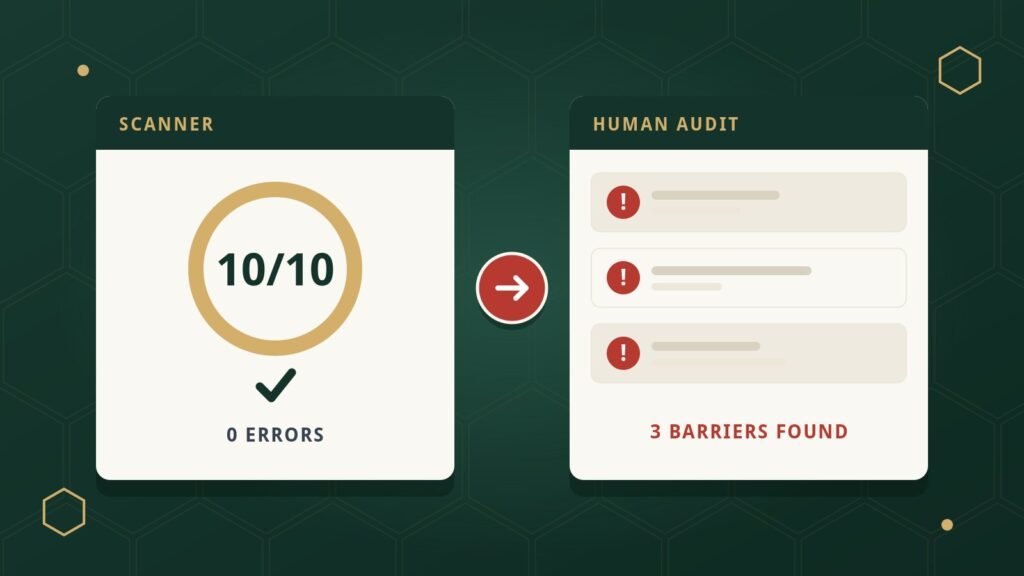
Then I went through the same page the way a screen reader user would. Here is what I found:
- The page had no main heading. The big “Covid 19” title in the banner was plain text, not an H1. The first real heading was an H3 halfway down the page. Screen reader users jump through a page by its headings, so this page gave them no map.
- The language setting was wrong. The code said the page was in US English, but every word on it was Spanish. A screen reader would read Spanish words with English pronunciation rules. Chrome kept offering to translate the page because of this mismatch.
- Two languages were mixed on the contact page. The form note “Fields marked with an * are required” and the opening hours were in English, on a Spanish page.
None of these three problems is rare, and none of them shows up on a scanner. The fixes took me about 30 minutes: add an H1, put the headings in order, and set the page language to Spanish.
I recorded this audit so you can see the scanner result and the missing heading for yourself. The video is 4 minutes long and has captions.
Two studies put a number on this gap. In 2017, the UK government’s digital team built a test page with 143 known barriers and ran 10 scanners on it. The best single tool found 41 percent of the barriers. Even all 10 tools together missed 29 percent.
In 2021, Deque, the company behind the axe scanner, studied 13,000 pages. They found that automation can catch about 57 percent of issues by volume. The rest needs a person.
Tip: Run a free scanner anyway. I use WAVE and axe DevTools at the start of every audit because they catch the easy problems fast. Just treat a clean scan as the starting line, not the finish line.
What Does an Accessibility Audit Check?
An audit checks whether people can see, use, understand and read your website with any tool they need. WCAG groups its rules under those four ideas:
- Perceivable. People can see or hear your content. Images have alt text, videos have captions, and text has enough contrast against its background.
- Operable. People can use every part of the site. Menus, forms and popups work with only a keyboard, and you can always see where you are on the page.
- Understandable. People can follow what’s happening. The page says what language it’s in, forms explain their errors, and nothing moves or changes on its own.
- Robust. Screen readers and other tools can read the code. Buttons are real buttons and headings are real headings.
In practice, here is what I test on every site, and whether a scanner or a person has to do it:
| Area | What I check | Scanner or person? |
|---|---|---|
| Images | Every image has alt text, and the alt text describes the image | Scanner finds missing alt text. A person checks the meaning. |
| Color and contrast | Text is readable against its background (4.5 to 1 for normal text) | Scanner, plus a person for text over photos |
| Keyboard | Every link, menu, form and popup works with Tab, Enter, Space and Escape | Person only |
| Focus | You can always see which item is selected as you press Tab | Person only |
| Screen reader | Pages make sense when read aloud by NVDA or VoiceOver | Person only |
| Headings and structure | One H1, headings in order, real lists and tables | Scanner finds some. A person checks the order and meaning. |
| Forms | Every field has a label, errors are read out, required fields are marked | Scanner finds missing labels. A person tests the whole form. |
| Video and audio | Captions and a transcript | Person only |
| Popups and widgets | Chat boxes, booking tools, sliders and cookie banners can be used and closed | Person only |
| PDFs and downloads | Menus, price lists and forms are readable, not just scanned pictures | Person only |
Look at the right column. Six of the ten rows need a person. A scanner can’t press Tab, can’t listen to a page, and can’t watch a video. That is the whole reason an accessibility audit exists.
What Does a Real Audit Finding Look Like?
A real audit finding has four parts: what is wrong, which WCAG rule it breaks, how bad it is, and how to fix it. A good report is a list of these findings, worst first. It does not give you a single score, because a score hides the problems.
Here is a real finding from a restaurant and catering website I audited.
The menu page listed about 40 dishes. Each dish name was a heading, and each price sat in a separate paragraph with a dotted line between them. The menu looked great on screen, and no scanner flagged it.
Now imagine hearing it through a screen reader: “Caldo de Pescado… $19.99… Birria… $16.95… Chicken Salad… $13.00”. Nothing says which number belongs to which dish. Worse, most screen reader users scan a menu by jumping from heading to heading. On this menu, they would hear every dish name and never hear a single price.
Here is how the finding looked in the report:
| Finding | Menu prices are not linked to their dish names |
| WCAG rule | 1.3.1 Info and Relationships (Level A) |
| Severity | Serious (2). The menu can be read, but it can’t be understood. |
| In plain English | A blind customer hears a list of dish names and a list of numbers, with nothing tying them together. They can’t tell what anything costs. |
| The fix | Add hidden labels that only screen readers hear, so each pair reads as “Item: Caldo de Pescado. Price: $19.99”. |
Here is the code fix. The sr-only class hides the label from sighted visitors but keeps it in the page for screen readers.
<h3><span class="sr-only">Item:</span> Caldo de Pescado (Fish Soup)</h3>
<p><span class="sr-only">Price:</span> $19.99</p>
The same site had a bigger problem, which I put at the top of the report. The homepage had a video with no captions and no transcript. For a deaf customer, that video was a silent movie with no subtitles. The rule is WCAG 1.2.2, and the severity is Critical (1). I fixed it with Able Player, a free video player that supports captions and a transcript.
Two more findings came from that one site. White text sat on a yellow background and failed the contrast rule. And the “Book catering” button opened a popup form that a keyboard user could not reach at all. I replaced the popup with a normal order form page, where every field got a proper label.
We are building a full sample audit report in this format from this same restaurant audit, with the business name left out. We will link it here as soon as it is ready.
The Three Problems I Find on Almost Every Site
Low contrast text, missing alt text and missing form labels show up on almost every site I audit. The numbers back this up. Every year WebAIM scans the top one million home pages. The 2026 report found detectable WCAG failures on 95.9 percent of them, with an average of 56.1 errors per page.
Six problem types made up 96 percent of all those errors. The top three are the same three I see on local business sites every month:
- Low contrast text (83.9 percent of home pages). Light gray on white, gold on cream, or white text over a bright photo.
- Missing alt text (53.1 percent). Or alt text that says “image1”, which is no better.
- Missing form labels (51 percent). The designer used placeholder text instead of a real label, so a screen reader says “edit text, blank”.
Here is the third real case, a spa website with 30 to 35 images. Most of the images had no alt text at all. Some said “image1” or “image2”. On a few, someone had pasted the same keyword into every alt field to help with Google, which breaks the rule in a different way.
Only 5 to 7 images were fine. I made a simple sheet with three columns: the image, the current alt text, and my suggested alt text. The owner approved the sheet, and I published the changes. The whole job took about an hour.
The same spa had two problems that no scanner would ever find:
- An offer popup with no way out. The popup appeared on every visit, and a keyboard user could not close it. The Escape key did nothing. The whole site was locked behind that popup, so we removed it.
- Three hidden price lists. The spa had three PDF price lists, one for each service. No page linked to them, but Google had indexed all three, so customers found them in search. None of the three could be read by a screen reader. I rebuilt them as normal web pages.
Expert Tip: Search Google for site:yourdomain.com and look through every result. Old PDFs, forgotten landing pages and test pages show up here. If Google can find a page, a lawsuit scanner can find it too.
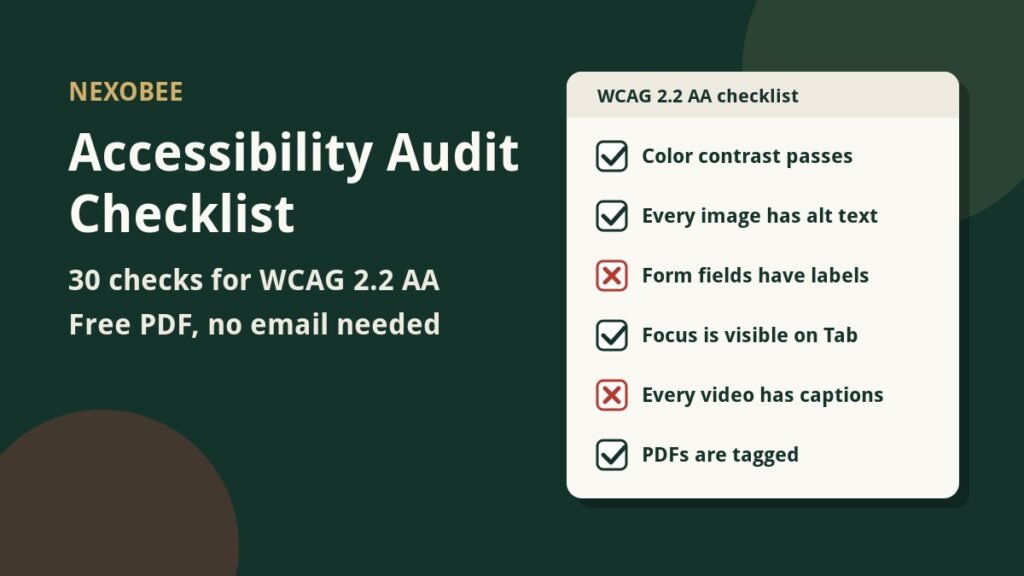
We also made a free accessibility audit checklist that covers these problems in the order they usually appear. You can tick it off on the page or download it as a PDF.
How an Accessibility Audit Works, Step by Step
An audit follows the same six steps on every site, from the first phone call to the finished report. Here is my process. Most good auditors follow something close to it.
- Agree on the scope. Decide which pages and which tasks matter most. For a restaurant, that is the menu, the booking form and the contact page. For a clinic, it is the appointment form.
- Run the scanners. Run WAVE and axe DevTools on every page in scope. This step is fast, and it catches the easy problems.
- Unplug the mouse. Press Tab through every page. Open every menu, fill in every form, and close every popup. Write down each place where you get stuck or lose sight of where you are.
- Listen with a screen reader. Use NVDA on Windows or VoiceOver on Mac. Check whether the page still makes sense with your eyes closed.
- Look for what is hiding. Search Google for the whole site. Check every PDF, video and third party widget that turns up.
- Write the report. List one finding at a time, worst first. Each finding gets its rule, its severity, a plain English note and a code fix.
How long does all of that take? For a new site of 10 to 15 pages, I take 24 to 48 hours. A new site has to be checked from every angle. For a site I check every month, where little has changed, a recheck takes one to two hours.
So be careful with a quote that promises a full audit of a 15 page site in one hour. That is not an audit. That is a scan with a nice cover page.
What You Get at the End of an Audit
At the end of an audit, you get a written report that your developer can act on the same day. Mine comes as a Google Doc, so your developer can leave comments on it. Here is what’s inside:
- A one page summary in plain English, written for the owner, not the developer
- Every finding with its WCAG 2.2 rule, its severity, and the page where it lives
- A code fix for each finding
- A suggested order for the fixes, so the worst barriers go first
I also turn each finding into a task in Asana. That way nothing gets lost between the report and the fix.
Severity is the part owners ask about most. I use four levels:
| Level | What it means | Example |
|---|---|---|
| Critical (1) | Some people can’t do the task at all | A booking popup can’t be opened with a keyboard. A video has no captions. |
| Serious (2) | The task is possible, but confusing or very hard | No H1. Menu prices not tied to dish names. Wrong page language. |
| Moderate (3) | Annoying, but there is a way around it | Weak alt text on a few photos. Contrast just below the line. |
| Minor (4) | Tidy up work | A decorative image with alt text it doesn’t need. |
Anything marked Critical or Serious should be fixed first. Those are the findings a lawsuit would point at.
Is an Audit the Same as Fixing the Site?
No. An audit finds the problems, remediation fixes them, and monitoring keeps them fixed. These are three separate jobs.
Some owners feel cheated when they learn this. They paid for an audit, and the site is still broken. But a home inspection doesn’t fix the roof either. You can’t fix what you can’t see, and the report is what makes the fix cheap and fast.
One tip: hire an auditor who can also do the fixing, or at least one who writes code. Reports written by testers who never touch code tend to say “fix the contrast” and stop. Reports written by developers say which color to change it to.
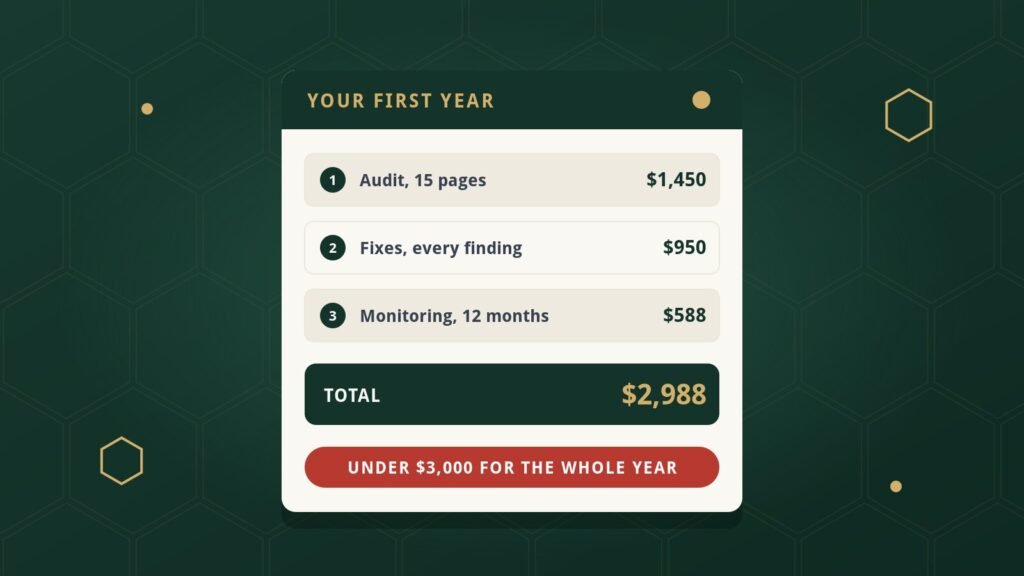
You can read about our remediation service for the fixing side. Want to know the price first? Our guide on accessibility audit cost in 2026 lists real prices, including ours.
Note: Not ready for a full audit? We offer a shorter Snapshot that checks your most important pages and tells you honestly whether a full audit is worth it. You can ask about it on our accessibility audit page.
When Do You Need an Accessibility Audit?
You need an accessibility audit soon if any of these describe you:
- You got a demand letter or a lawsuit and need to know exactly where you stand
- Your site takes bookings, orders or payments online
- You are in a group that gets sued often: restaurants, online shops, clinics, hotels, spas
- You are planning a redesign and want to build on a clean base
- You added an accessibility widget and want to know whether it did anything
Acting before a letter arrives matters, because fixing the site is the one cost you control. Once a lawsuit starts, you pay for lawyers on both sides and still have to fix the site. We break down those numbers in our guide to ADA lawsuit settlement amounts.
Want to know where your site stands? Contact us now and tell us about your website. We’ll look at it and tell you honestly whether you need a full audit, a Snapshot, or nothing at all yet.
FAQs About Accessibility Audits
What is an accessibility audit?
An accessibility audit is a review of a website by a person, page by page, that finds where people with disabilities get blocked. Each problem is listed with its WCAG rule, its severity and a fix. A scanner is only the first step of an audit, not the audit itself.
How long does an accessibility audit take?
A full audit of a 10 to 15 page business site takes about 24 to 48 hours of work. A monthly recheck of a site that has already been audited takes one to two hours. Very large sites and web apps take longer.
Is an automated scan the same as an audit?
No. A scan checks only what a machine can measure, and studies show it misses roughly a third to a half of real barriers. An audit adds keyboard testing, screen reader testing and human judgment, which is where most lawsuit claims come from.
Which standard does an accessibility audit use?
Most audits test against WCAG 2.2 Level AA, the current version of the Web Content Accessibility Guidelines. Courts, the Department of Justice and most settlement agreements point to WCAG Level AA as the target.
Will an audit make my website ADA compliant?
No single step can promise that, and anyone who says otherwise is selling something. An audit shows you exactly where your site fails WCAG today. Fixing those findings, and checking again after every change, is what lowers your risk.
I hope this guide helped you understand what an accessibility audit is and what to expect from one. You may also want to read our guide on what to do after an ADA demand letter. Our article on accessibility overlays vs real remediation is a good next read too.
Sources: WebAIM Million 2026 (95.9 percent of home pages, 56.1 errors per page, top six error types). GOV.UK accessibility team, 2017 (143 barriers, 10 tools, best tool 41 percent, 29 percent missed by all). Deque, 2021 (57 percent of issues detectable by automation across 13,000 pages). WCAG 2.2 (W3C). The three case studies are real audits by the author. Business names are left out on purpose.