ADA website compliance means building and running your website so people with disabilities can actually use it — read it, navigate it, and complete tasks like booking an appointment or making a purchase. The Americans with Disabilities Act (ADA) doesn’t list exact technical rules for websites, but the U.S. Department of Justice has said for years that the ADA’s requirement to serve people with disabilities applies to business websites, not just physical stores. In practice, most businesses aim for a technical standard called WCAG 2.2 AA, because it’s the closest thing to an accepted benchmark.
That’s the short version. The rest of this guide covers what that actually means day to day, what an inaccessible website looks like, whether you can be sued over it, and what to do about it without falling for scare tactics or shortcut products.
What Is ADA Website Compliance?
ADA website compliance is the practice of designing and maintaining a website so it doesn’t shut out people with disabilities. That includes people who are blind or have low vision, people who are deaf or hard of hearing, people with limited hand mobility, and people with cognitive disabilities that affect how they read or process information.
The Americans with Disabilities Act was passed in 1990, long before most businesses had websites. It doesn’t mention HTML, buttons, or screen readers. What it does say is that businesses open to the public have to give people with disabilities full and equal access to their goods and services. The Department of Justice has taken the position, consistently, since the 1990s, that this requirement extends to the web.
So “ADA website compliance” isn’t a certificate you earn or a checkbox you tick once. It’s an ongoing state: your website works for people using a mouse, and it also works for someone using a keyboard only, a screen reader, or voice control software.
Does the ADA Actually Apply to Websites?
Yes, according to the Department of Justice’s own guidance, and yes according to the courts that have ruled on the issue. The Department of Justice has stated that it has “consistently taken the position” that ADA requirements apply to all the goods, services, and activities that businesses offer to the public, including those offered on the web.
Here’s where it gets more specific. The ADA has two main parts that matter for this discussion:
Title II covers state and local governments. In 2024, the Department of Justice finalized a rule that spells out exactly how government websites and apps need to meet WCAG 2.1 Level AA, with specific deadlines depending on the size of the government entity. This rule is detailed and binding, but it only applies to public-sector websites like city governments, public schools, and transit agencies.
Title III covers “public accommodations” — private businesses that serve the public, including retail stores, restaurants, hotels, and medical offices. This is the part that applies to most commercial websites. Unlike Title II, there is no dedicated federal regulation spelling out exact technical requirements for private business websites. The Department of Justice’s long-standing position is that its general nondiscrimination and “effective communication” requirements already cover websites, but it hasn’t published a rule that says, in effect, “here is exactly what your website needs to do.”
That gap between “the law applies” and “here’s the specific technical checklist” is the single most confusing part of this topic, and it’s worth sitting with for a moment. It doesn’t mean businesses are off the hook. It means businesses have some flexibility in how they comply, but they still have to actually comply, and courts have repeatedly sided with plaintiffs who argued that an inaccessible website denied them equal access.
Is There an Official Legal Standard for Website Accessibility?
Not one written into the ADA itself. But the Department of Justice, most courts, and the accessibility industry all point to the same technical standard: the Web Content Accessibility Guidelines, or WCAG, at Level AA.
WCAG is published by the World Wide Web Consortium (W3C), the international organization that develops web standards. It is not a U.S. law. It’s a technical specification, originally written for developers and designers, that describes what “accessible” actually means in concrete, testable terms. The current version is WCAG 2.2, and Level AA is the middle of three conformance levels — stricter than the baseline “A” level, and more achievable than the highest “AAA” level.
WCAG 2.2 organizes its requirements around four principles, often remembered by the acronym POUR:
- Perceivable — people need to be able to perceive the content, whether that means seeing it, hearing it, or receiving it through a screen reader or braille display.
- Operable — people need to be able to operate the interface, including with a keyboard alone.
- Understandable — content and navigation need to behave predictably and be written clearly.
- Robust — content needs to work reliably across different browsers and assistive technologies.
Because WCAG 2.2 AA is what courts and regulators reference most often when they talk about web accessibility, it’s the standard most businesses use as their working definition of “ADA compliant.” It’s important to keep two separate ideas straight here: meeting WCAG 2.2 AA is a strong, well-documented way to reduce accessibility barriers and legal risk. It is not the same thing as a legal guarantee. No technical checklist can promise a lawsuit will never happen, and no vendor who tells you otherwise is being straight with you.
What Does an Inaccessible Website Actually Look Like?
This is the part most guides skip past too quickly. Here are the barriers the Department of Justice itself calls out as common examples, explained in plain terms.
Poor color contrast
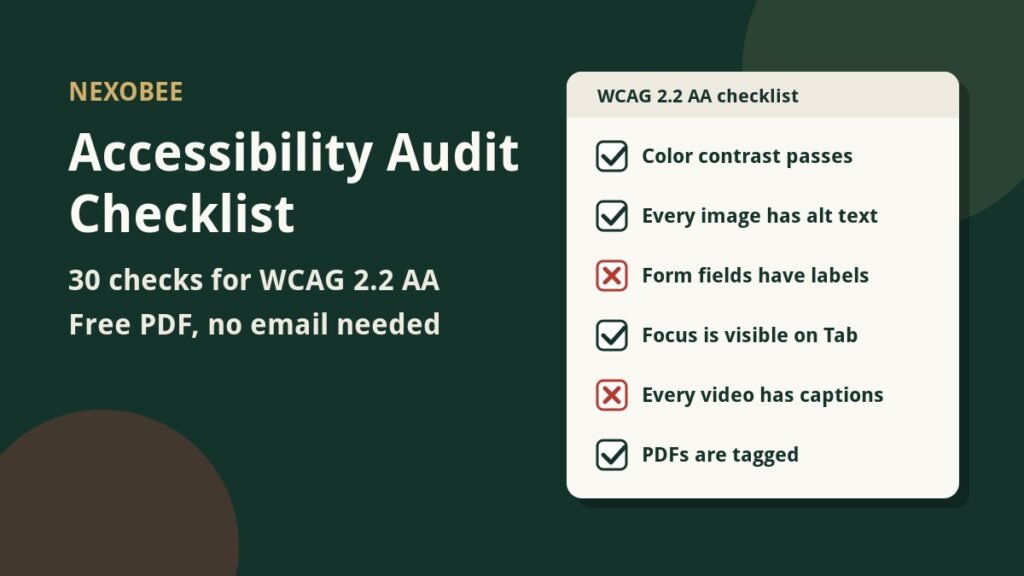
If text is too close in color to its background — light gray text on a white background, for example — people with low vision or color blindness may not be able to read it at all. The fix is usually simple: use text and background colors with enough contrast between them, which you can check with a free contrast-checking tool.
Using color as the only signal
Imagine a form where required fields are marked only by turning the label red. Someone who is colorblind may not notice the color difference. Someone using a screen reader won’t hear “this is red” at all, because screen readers describe text and structure, not visual styling. The fix is to add a second signal, like the word “required” next to the field.
Missing alt text on images
A screen reader is software that reads a webpage’s content aloud, or sends it to a refreshable braille display, for someone who is blind or has low vision. When it reaches an image, it can only describe what it’s told to describe. If a product photo has no alt text, a screen reader might just say “image” — no product name, no description, nothing useful. Alt text is a short written description added to an image specifically so that people who can’t see it still know what it shows and why it’s there.
Videos with no captions
If a video has no captions, someone who is deaf or hard of hearing may miss the information in it entirely, even if there’s a transcript buried somewhere else on the page.
Inaccessible forms
A form field needs a real, programmatically connected label — not just placeholder text that disappears when you start typing — so a screen reader can tell the user what to enter. Error messages need to say what went wrong and how to fix it, not just turn the border red.
No keyboard navigation
Keyboard navigation means a person can reach every link, button, and form field using only the keyboard — usually the Tab key to move forward, Shift+Tab to move back, and Enter or Space to activate something — without ever touching a mouse. This matters for people who have limited hand mobility, tremors, or use switch devices instead of a mouse. A simple way to spot this problem yourself: unplug your mouse for five minutes and try to book an appointment or add something to a cart using only your keyboard. If you get stuck, a screen reader user or keyboard-only user would get stuck too.
Can My Business Really Get Sued Over This?
Yes, this happens, and it has become more common over the past decade. Businesses of many sizes — not just large national chains — have been sued or sent demand letters over inaccessible websites, and legal tracking firms that monitor court filings have reported a steady stream of these cases every year, with online stores facing a disproportionate share of them.
That said, it’s worth pushing back on the fear-based version of this story that a lot of vendors use to sell quick fixes. A lawsuit is not a certainty, and no single tool or badge can promise you’ll never be targeted. What actually reduces your risk is straightforward: an accessible, well-built website that real people with disabilities can use. Businesses that treat accessibility as an ongoing part of how they build and maintain their site — not a one-time purchase — are in a meaningfully better position than businesses that do nothing, and also better off than businesses that install a quick-fix tool without addressing the underlying code.
Do Accessibility Widgets or Overlays Make My Site Compliant?
Generally, no — not on their own. Overlay widgets are scripts you add to a site that claim to automatically detect and fix accessibility issues, often through a small accessibility icon in the corner of the page. They can adjust some surface-level things, like font size or contrast, but they generally can’t rewrite your site’s underlying code, fix broken form labels, add real alt text with the right meaning, or make a custom-built navigation menu genuinely operable by keyboard. Some overlays have even introduced new problems for screen reader users by interfering with how assistive technology reads the page.
This is a big enough topic that it deserves its own explanation, including what these tools can and can’t do, and what “real remediation” looks like instead. We cover that in detail in a separate article on accessibility overlays versus real remediation. The short version for now: an overlay might be part of a broader plan, but it is not a substitute for fixing the code.
What Should a Business Owner Do First?
If you’re starting from zero, here’s a sensible order of operations.
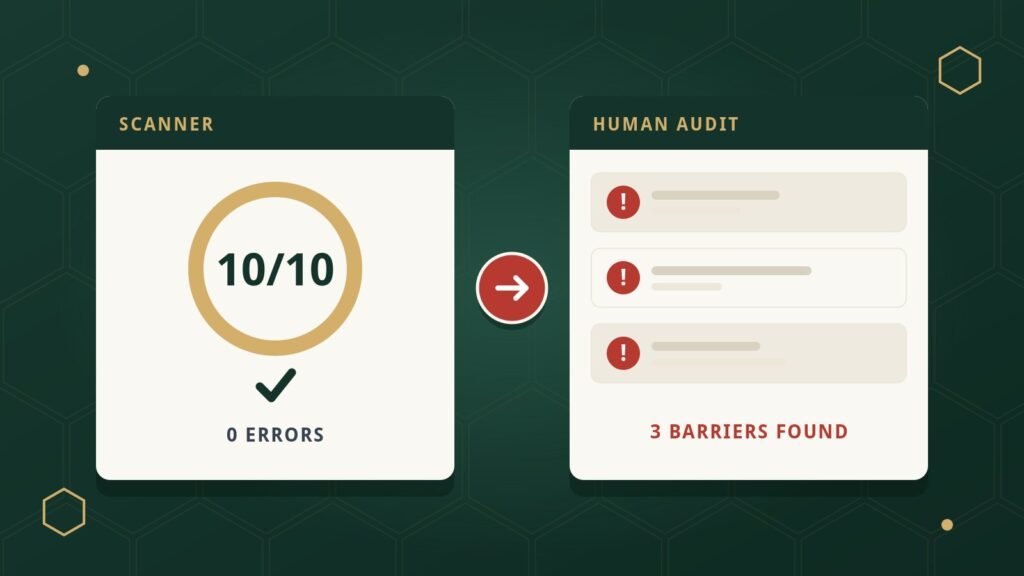
- Get a real picture of where you stand. Automated scanners can catch some issues, like missing alt text or low contrast, but they can’t tell you whether your keyboard navigation actually works or whether a screen reader user can complete your checkout flow. A thorough audit combines automated scanning with manual keyboard testing and real screen-reader testing against the WCAG 2.2 AA criteria.
- Fix the highest-impact problems first. Broken forms, unreachable navigation, and missing labels on interactive elements tend to block entire tasks. Cosmetic issues matter too, but they don’t usually stop someone from using the site altogether.
- Fix the code, not just the surface. Durable accessibility comes from correcting the underlying HTML, labels, and structure — not from layering a script on top of the existing problems.
- Keep checking. Websites change constantly. A new plugin, a new page, or a content update can introduce a new barrier even after everything else has been fixed. Ongoing monitoring catches that drift before it piles up.
If you want a professional read on where your site currently stands, an accessibility audit is the logical starting point — it tells you exactly what’s wrong before anyone starts fixing anything.
Frequently Asked Questions
Does the ADA apply to small businesses, or only large companies?
Yes. The ADA’s Title III requirements for public accommodations don’t include a small-business exemption based on size or revenue. If a business is open to the public and has a website, the same general nondiscrimination principles apply, regardless of company size.
Is WCAG actually the law?
No. WCAG is a technical standard published by the W3C, not a U.S. statute. The ADA is the law. Courts and regulators commonly reference WCAG 2.2 AA as the practical benchmark for what an accessible website looks like, but WCAG itself was not written as, and is not, binding federal legislation for private businesses.
Does meeting WCAG 2.2 AA guarantee I won’t be sued?
No. Meeting WCAG 2.2 AA substantially reduces the number of real barriers on your site and reflects a good-faith, well-documented effort at accessibility, which matters a great deal. But no technical standard can guarantee against litigation, and any vendor claiming otherwise is overstating what their product can do.
Do accessibility overlay widgets make a website ADA compliant?
Not by themselves. Overlays can adjust some surface display settings, but they generally cannot fix the underlying code problems that create the biggest barriers, such as unlabeled forms or broken keyboard navigation. Real compliance comes from fixing the site’s actual code and structure.
How do I find out if my website has accessibility problems?
The most reliable way is a combination of automated scanning, manual keyboard-only testing, and testing with real screen reader software, evaluated against the WCAG 2.2 AA success criteria. An accessibility audit is built to answer exactly this question.
NexoBee performs website accessibility audits using automated testing, manual keyboard testing, and screen-reader testing evaluated against WCAG 2.2 Level AA — and fixes issues at the code level rather than relying on overlay widgets. If you’re not sure what’s happening on your own site, get in touch and we’ll help you figure out where to start.